
Printer Printing Blank Pages or Showing Offline on Mac: Troubleshooting Guide
By Solve Tech Problems Online Team
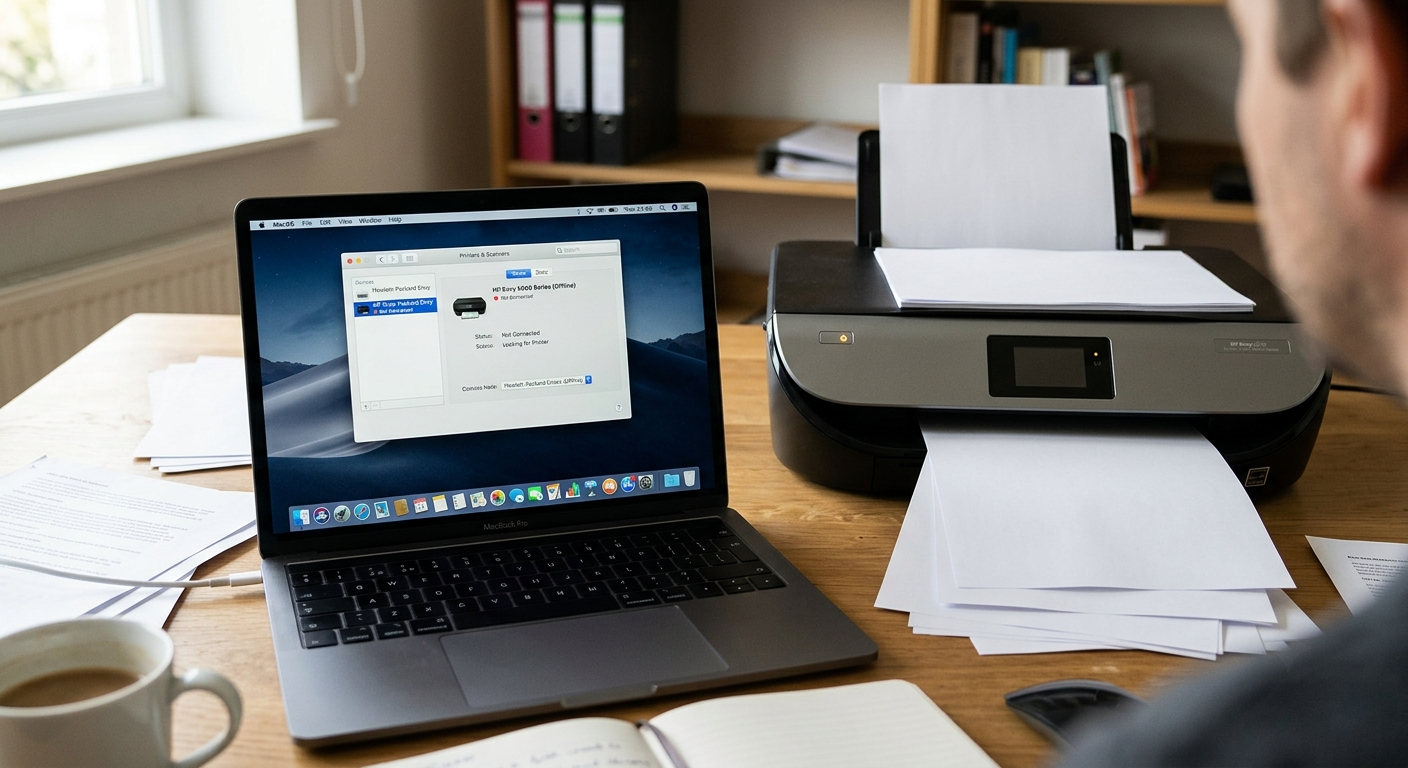
A printer that suddenly stops cooperating is one of the most common complaints Mac users bring to us. Sometimes it's a document that comes out as a stack of empty sheets no matter how many times you hit "Print." Other times, the printer simply won't respond at all, sitting right next to you but refusing to connect. Both situations are frustrating, especially when you're in a hurry to get something out the door, and both tend to look more serious than they actually are.
In this guide, we'll break down why a printer printing blank pages happens and walk through clear, practical fixes so you can get back to printing without the guesswork.
Why Is Your Printer Printing Blank Pages?
Before jumping into fixes, it helps to understand what's actually going wrong. A few things typically cause this:
- Low or empty ink/toner cartridges - Even if the printer shows some ink remaining, a nearly empty cartridge can produce faint or completely blank output.
- Clogged print heads or nozzles - Dried ink blocks the nozzles, especially if the printer hasn't been used in a while.
- Incorrectly installed cartridges - A cartridge that isn't seated properly won't release ink even though it's technically "installed."
- Outdated or corrupted printer drivers - Mac OS updates sometimes conflict with older driver software.
- Wrong paper settings or a stuck protective tape - Newer cartridges sometimes still have a strip of tape covering the print head.
How to Fix a Printer Printing Blank Pages on Mac
The good news is that most of these causes can be fixed without any special tools or technical know-how. Work through the steps below in order, and test your printer after each one before moving to the next.
-
Run a nozzle check and head cleaning
Most manufacturers (HP, Epson, Canon, Brother) include a built-in utility for this. Open your printer's software, find "Maintenance" or "Utilities," and run the cleaning cycle before printing a test page.
-
Check and reseat your ink or toner
cartridges
Remove each cartridge, inspect it for damage or dried residue, and firmly reinsert it until you hear it click into place.
-
Print a test page directly from the printer
This bypasses your Mac entirely and tells you whether the hardware itself is at fault.
-
Update your printer driver and macOS
Go to System Settings > General > Software Update to make sure both are up to date, then check the manufacturer's website for the latest driver.
-
Reset the Mac printing system
Head to System Settings > Printers & Scanners, right-click (or Control-click) in the printer list, and select "Reset Printing System." This clears out corrupted queues and settings that often cause blank output.
-
Try printing from a different app
If a document from Pages or Preview prints blank but a PDF prints fine, the issue may be app-specific rather than printer-related. Try saving the file as a PDF first and printing that instead.
.png)
Why Does a Printer Show Offline on Mac?
This is a different kind of headache: your printer showing offline on Mac even though it's powered on and sitting right in front of you, ready to go. Your Mac simply can't "see" or communicate with it. Common causes include:
- The printer and Mac are on different Wi-Fi networks.
- The printer has gone into sleep mode and hasn't reconnected.
- Stuck print jobs are clogging the queue.
- The printer software is outdated or corrupted.
- Another printer with the same name is duplicated in the printer list, confusing macOS.
How to Fix a Printer Showing Offline on Mac
-
Confirm both devices share the same network
Check your printer's control panel for its connected Wi-Fi network name and compare it with your Mac's.
-
Restart the printer and your Mac
Power everything down completely, wait about a minute, then turn both back on. This clears temporary glitches more often than you'd expect.
-
Clear the print queue
Open System Settings > Printers & Scanners, select your printer, and cancel any jobs stuck in the queue.
-
Remove and re-add the printer
Click the minus (–) button to delete it from the list, then click the plus (+) button and select it again once it reappears.
-
Set your printer as the default
Sometimes another printer or a "virtual" printer (like Save as PDF) gets set as default, which can cause the real one to appear offline.
-
Reset the printing system as a last resort
As mentioned above, this wipes all printer entries and lets you start fresh. It resolves offline errors more reliably than almost any other single step.
When to Get Extra Help
If you've worked through these steps and your printer is still misbehaving, the issue could be a deeper driver conflict, a failing print head, or a macOS bug tied to a specific update. In that case, it's worth reaching out to a professional who can diagnose the problem remotely rather than continuing to guess.
Conclusion
Most printing problems on a Mac come down to a handful of fixable causes: low ink, clogged nozzles, driver mismatches, or a printing system that simply needs a reset. Once you know where to look, getting a stubborn printer back online or fixing a printer printing blank pages, usually takes just a few minutes. Working through the steps above in order will resolve the issue for the vast majority of Mac users, without needing to buy a new printer or call in a technician.
If the problem persists after trying everything here, it's a sign of a more specific hardware or software conflict, and getting expert eyes on it will save you time and frustration. Keep this guide handy the next time your printer starts acting up, and remember that Solve Tech Problems Online is here to help whenever you need a hand.
Frequently Asked Questions
-
Why does my printer show ink levels but still print blank pages?
Displayed ink levels aren't always accurate indicators of performance. Clogged nozzles, air bubbles, or dried ink can block flow even when cartridges appear full, so run a head-cleaning cycle first.
-
Will resetting the Mac printing system delete my printer permanently?
No, it only removes the printer from your list temporarily, clearing corrupted settings and queues in the process. You'll simply need to re-add it afterward, and no hardware is ever affected.
-
Why does my printer go offline every time it's idle for a while?
Sleep mode on either the printer or the Mac can quietly break the network connection between them. Adjusting power and sleep settings on both devices usually prevents this from happening repeatedly.
-
Can outdated macOS software cause blank pages or offline errors?
Yes, definitely. Printer drivers are closely tied to specific macOS versions, so running an outdated system or mismatched driver is one of the most frequent causes behind both blank pages and offline errors.
-
Should I use a wired or wireless connection to avoid these problems?
Wired USB connections are generally more stable and less prone to dropouts. Wireless works just fine too, as long as both the printer and Mac stay connected to the same network consistently.
Still Having Printer Trouble?
If you've tried every step above and your printer is still printing blank pages or showing offline on your Mac, you don't have to keep troubleshooting alone. Visit SolveTechProblemsOnline.com to connect with a tech expert who can walk you through a personalized fix and get your printer back up and running quickly.